
How to uninstall /delete apps on Mac
What is an uninstalling app?
Uninstalling means deleting or removing things from the computer. So the uninstalling an app means removing a specific app that is not in use—furthermore, the app which is consuming more disk or slowing down your PC.
How to uninstall apps on Mac?
In order to uninstall or delete apps that you download or install from the internet. You have to follow the steps given below.
- First of all, you need to open LaunchPad. To open Launchpad, you need to search in the application folder ( You can open the Launchpad by pinching three times on your trackpad).
- If you can’t see the app, then you have to write its name in search, or you can find it by swapping left and right on the trackpad.
- Now, you need to press and hold the option key and click on the app until the app jiggle.
- Click on the cross option to delete the app.
- Click on delete to confirm the uninstalling app.
Using Finder to uninstall an app on Mac:
There is another method to delete apps on Mac; you have to follow the steps sequentially so you can get a free space.
- Click on the Finder and search for the app.
- You can use a spotlight to find an app on Mac, then press and hold a command key. Then double click on the app in the spotlight.
- Now, you need to drag the app and move it to the trash/ dustbin.
- To delete an app, you have to choose Finder>Empty Trash.
Moreover, you can restore or reinstall an app from backup.

How to uninstall apps on mac Catalina?
Sometimes, we often download some useless apps, which slower our PC. In order to get rid of such a nuisance, I am going to explain three methods. So, without any delay, Let’s get started.
Method 1: Use of Finder
For this method, you must know the MacOs catalog. Without knowing the mac catalog, you wouldn’t be able to follow the following steps.
- Go to the Finder and open Application Folder.
- Search for the app and move the application to the Trash.
- You have to open Finder, then navigate to the Go and Go to the Folder. You have to check some shared folders, which are as follows.
/Library/ Application Support
/Library/ Cache
/Library/ Log
/Library/ Prefrences
/ Library/ PreferencesPane
/ Library/ StartupItems
/Library/ Cookies
Method 2: Use Provided Installers

Some app developers provide uninstallers along with the installer. These uninstallers do not appear in the launchpad but are found in the app folder in Finder. If the app has such installers, you can uninstall the app by finding these in the app folder.
Method 3: Use third-party software
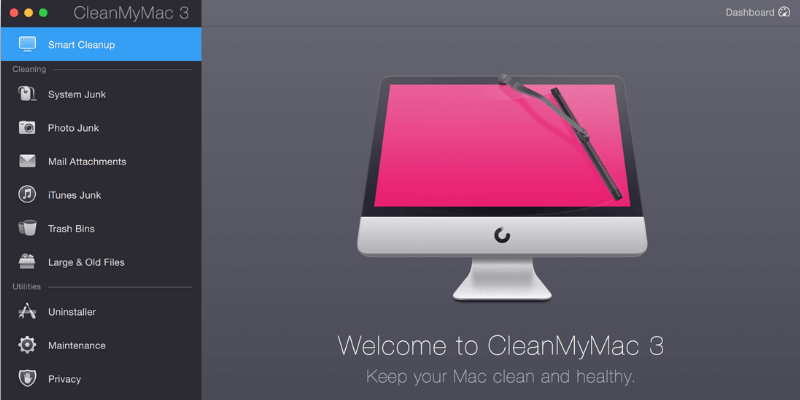
At last, this is the third method but not the least. It would help if you had a third-party tool to uninstall the app on Mac. The third-party tool is CleanMyMac; you can get it from the URL CleanMyMac: The best Mac cleaner & maintenance software. It is an application whose job is to monitor the system and make a recommendation on data that is causing your system slow.
How can I use CleanMyMac to uninstall the apps?
In order to use the CleanMyMac, you need to follow the steps given below.
- Open the app (CleanMyMac).
- It would be best if you navigated to Applications> Uninstaller.
- Select the application you want to uninstall, and then you have to click on the checkbox to select an application.
- Now, you need to click on the Uninstall button at the bottom of CleanMyMac to uninstall the selected apps.

How to delete apps on Mac that Won’t delete?
Sometimes, it becomes a headache to delete apps on Mac. You have to follow a few steps given below.
- You need to open Finder and select Applications from the favorite list.
- It would be best if you navigated to Utilities> Activity Monitor.
- Now, you need to search for the app in the search bar or type the name of the app.
- Select the app and click on the Cross icon on the right corner. Now, you need to click on Quit to end the process.
- After these steps, you can uninstall apps on Mac.

How to delete apps on Mac that Won’t delete?
Use of EaseUs Mac CleanGenius:
If you are unable to delete any app on Mac, you need to follow the steps given below.
- Go to the search engine and search for Speed up your PC, clean and repair system - EaseUS CleanGenius..
- Now, download the EaseUs Mac CleanGenius app on your PC.
- After the installation, you need to Launch the app.
- Under the Tool icon, click on the Uninstall app.
- Search for the desire application to uninstall the app.
- Click on Uninstall to uninstall the app.

How do I uninstall Microsoft on Mac?
Method 1:
You can easily uninstall Microsoft on Mac by using the steps given below.
- You need to navigate to Finder> Application.
- Select all the Microsoft applications by using a command (Command +click).
- Now, you need to press Ctrl+click an application you selected to delete.
- Now, click on Move to Trash.
Method 2: Remove files from the user library.
- In Finder , press Command+Shift+g.
- In the window, write ~/Library and then click on Go.
- You need to open the container folder and Ctrl+click. Now, you need to each of these folders to Trash .
- You can do it by clicking back and open the group container.
- You have to click on Ctrl+click and move all to Trash.
Method 3: Remove from Doc and Restart

- In this method, if you put any application in Doc., you need to click on Ctrl+click.
- After this, click on Options> Remove from Doc.
- Now, you need to reinstall your Mac and start the uninstallation.